How to Import Audio from a Video Link on iPhone

Updated: 18 minutes ago
This guide shows how to bring the audio of a shared video link into SoundLab on iPhone and start editing.

Step 1:
Copy video share link from YouTube

Step 2:
Open https://www.linkbee24.com in Safari, and paste YouTube link :

When you open the page for the first time, you may need to wait a few seconds. After Initialize, you can start using it.
Step 3:
Tap "Extract" to start extracting the link, extraction takes about 10–20 seconds

Step 4:
Once extraction is complete, press and hold the "Press & Hold to Save" button to open menu, then tap the “Download Linked File” menu item:

Tap the small download button next to the address bar to open action menu, then tap the "Downloads" menu item to open your downloads.

Step 5:
Share downloaded file to SoundLab:

Finish import and edit in SoundLab:
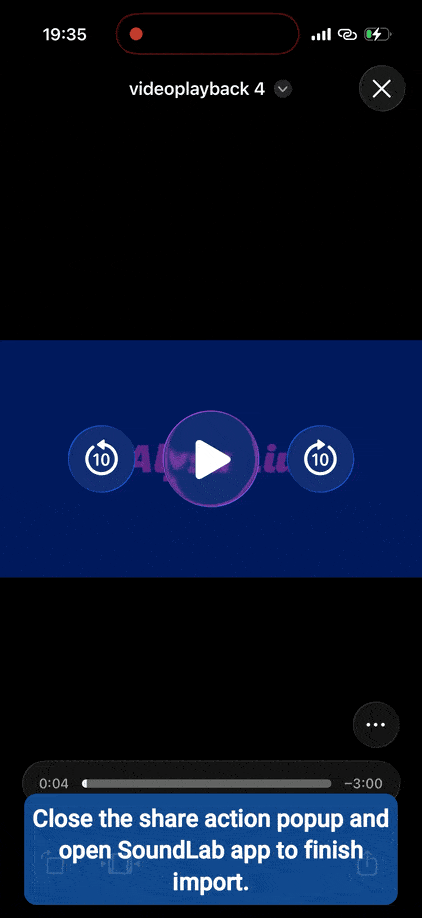
Full version video:


How do I make an iPhone ringtone from my downloaded extracted file?
So fantastic